
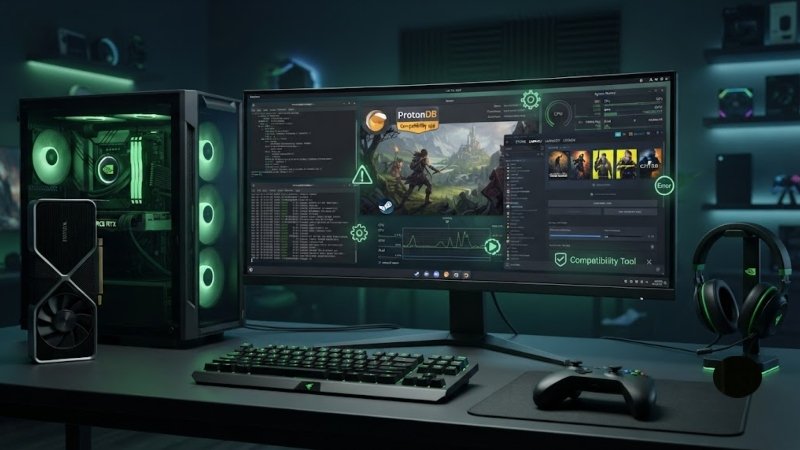
Gaming on Linux has come a long way in the last few years. Thanks to tools like Proton, Steam Play, and Lutris, playing Windows games on Linux is no longer a niche hobby reserved for tinkerers. Still, anyone who has spent real time gaming on Linux knows it isn’t always smooth sailing. From driver conflicts to missing dependencies, a handful of recurring issues tend to show up again and again. In this article, we’ll walk through the most common Linux gaming problems and practical ways to fix them.
1. Graphics Driver Issues
The single biggest source of headaches for Linux gamers is graphics drivers. Unlike Windows, where drivers are usually installed automatically, Linux often requires manual setup, especially for NVIDIA cards.
The Problem: Games crash on launch, stutter badly, or show visual glitches like flickering textures and screen tearing.
The Solution: Always install the proprietary driver for your GPU rather than relying on the open-source default. For NVIDIA users, this means installing the official NVIDIA driver through your distro’s package manager (e.g., sudo apt install nvidia-driver-535 on Ubuntu-based systems). AMD users generally get better results with the open-source Mesa drivers, which are already quite mature. After installing or updating drivers, always reboot before testing again.
2. Games Not Launching Through Steam Proton
Proton has made thousands of Windows-only games playable on Linux, but not every title works out of the box.
The Problem: A game shows a black screen, crashes immediately, or simply refuses to start.
The Solution: Start by checking ProtonDB, a community-driven site that rates how well specific games run under different Proton versions. Often, switching to a different Proton version (like Proton Experimental or GE-Proton, a community fork with extra compatibility patches) solves the issue instantly. You can install GE-Proton through ProtonUp-Qt, a simple GUI tool that manages Proton versions for you.
3. Missing Dependencies and Libraries
The Problem: A game or launcher fails to open, often with a cryptic error mentioning a missing .so file or library.
The Solution: This usually means a required system library isn’t installed. Reading the terminal output (run the game from a terminal instead of clicking its icon) will usually reveal the missing dependency name. From there, a quick search combined with your distro’s package manager solves it. Tools like Lutris and protontricks can also automatically install common missing components like Visual C++ Redistributables or .NET runtimes that many Windows games expect.
4. Poor Performance Compared to Windows
The Problem: The same game runs noticeably slower on Linux than it did on Windows, even on identical hardware.
The Solution: A few things usually help close this gap. First, enable Proton Experimental or GE-Proton, both of which include performance-focused patches. Second, make sure you’re using the latest kernel and graphics drivers, since performance improvements land frequently. Third, tools like gamemoderun (from Feral Interactive) can be prefixed to your game’s launch command to automatically optimize CPU governor settings and process priority while gaming.
5. Controller and Peripheral Detection Problems
The Problem: A controller works fine in one game but isn’t recognized in another, or inputs feel delayed.
The Solution: Steam’s built-in controller configuration usually handles most modern controllers well, including Xbox and PlayStation pads. If a controller isn’t detected outside of Steam, installing xpadneo (for Xbox controllers) or ds4drv/sc-controller (for PlayStation controllers) as system-level drivers often resolves detection issues. For Bluetooth controllers, pairing through your desktop environment’s Bluetooth settings before launching the game tends to be more reliable than pairing mid-game.
6. Audio Cutting Out or Not Working
The Problem: In-game audio stutters, disappears entirely, or games default to the wrong audio device.
The Solution: Most modern distros have shifted to PipeWire, which handles audio far more gracefully than the older PulseAudio setup. If you’re still on PulseAudio and facing audio issues, upgrading to PipeWire is often the fix. You can also manually set the correct output device in your desktop’s sound settings before launching the game, since some titles default to the system’s first detected audio device rather than your preferred one.
7. Anti-Cheat Restrictions
The Problem: Certain multiplayer games simply refuse to run on Linux, showing anti-cheat-related errors.
The Solution: Unfortunately, this is one of the few problems without a guaranteed fix, since it depends on the game developer enabling Linux/Proton support for their anti-cheat system. Websites like “Are We Anti-Cheat Yet” track which games support Linux and which don’t, so checking there before purchasing a heavily multiplayer-focused title can save frustration.
Final Thoughts
Linux gaming has matured significantly, and most problems gamers run into today have known, documented fixes rather than being genuine dead ends. Keeping your drivers updated, using tools like ProtonUp-Qt and Lutris, and checking community resources like ProtonDB before troubleshooting blindly will solve the vast majority of issues you encounter.
If you’re looking for more detailed guides on setting up your Linux gaming rig, troubleshooting specific titles, or optimizing your system for better performance, feel free to check out more articles like this one on highlevelblogs.com. We regularly cover practical, no-nonsense solutions for everyday tech problems.